At set hours
Weekdays 9 to 5, evenings after dinner, a late-night cutoff. Every day can have its own hours.
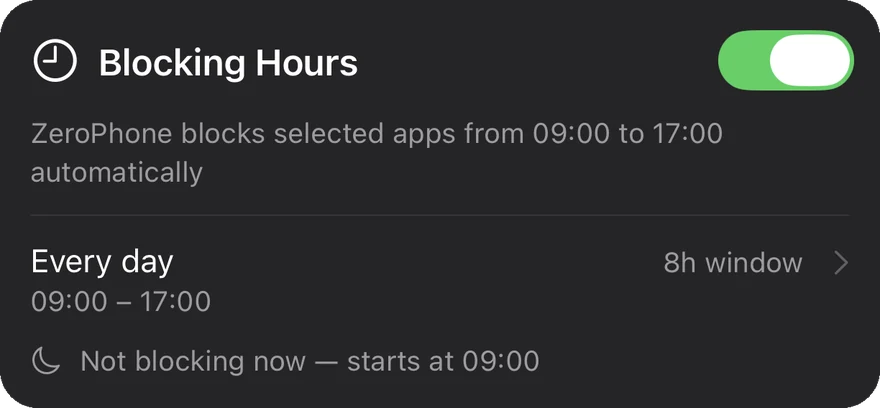
ZeroPhone blocks them at the hours and places you choose, or with a tap of an NFC tag. Go strict, and even you can’t get back in.


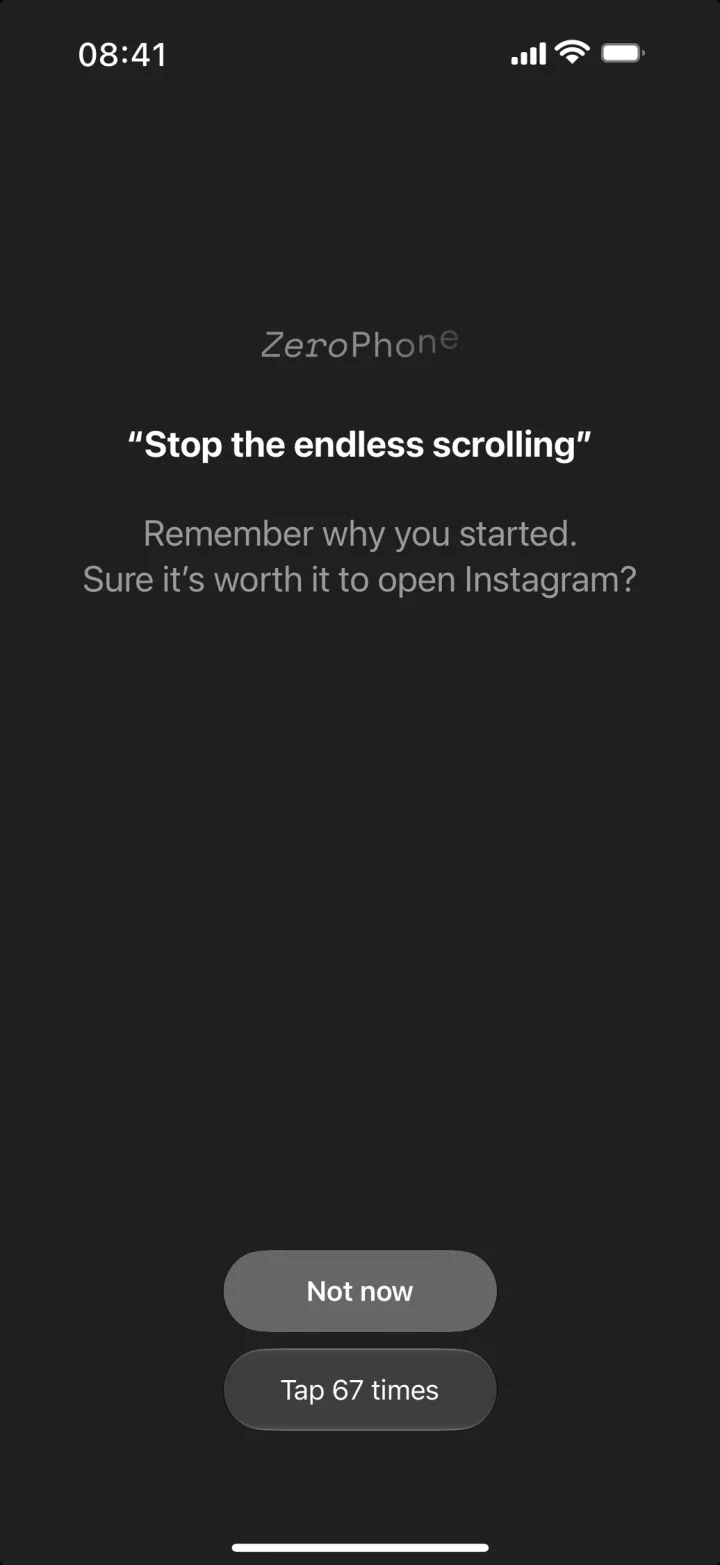
You pick up your phone to check the time. Twenty minutes later, you’re still scrolling.
Screen Time limits don’t stop it: one tap on “Ignore Limit” and you’re back in. ZeroPhone keeps you from doomscrolling.
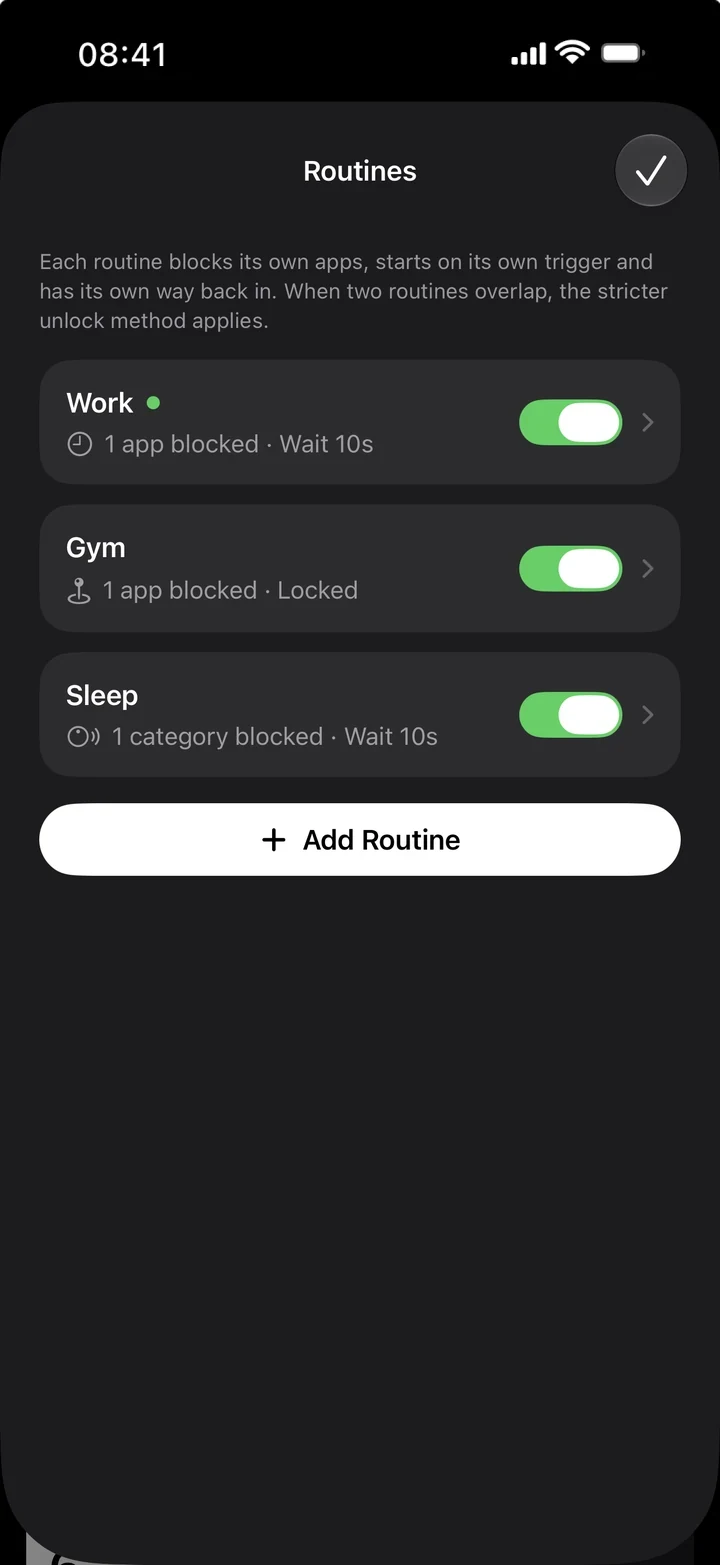
Make a routine for each part of your day, like work, the gym or bedtime. Each one blocks its own apps and starts on its own, so there’s nothing to remember and nothing to talk yourself out of.
Weekdays 9 to 5, evenings after dinner, a late-night cutoff. Every day can have its own hours.
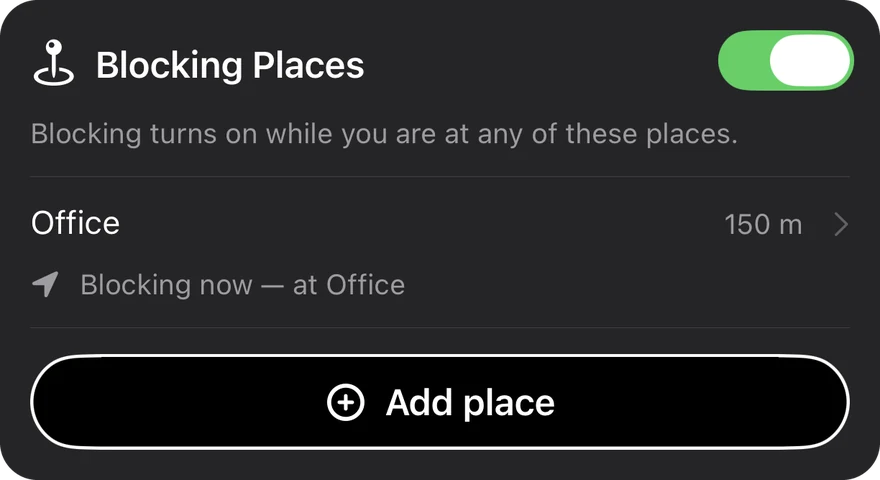
Add your office, the library, or the gym. Apps lock when you arrive and unlock when you leave, even with ZeroPhone closed.
Stick a tag by your bed or on your desk. Tap it with your iPhone to start the routine, and tap it again to stop it.

Start gentle. Turn it up the first time you catch yourself cheating.
A partner, parent, or friend sets a passcode. Without them, you can’t loosen a routine or change what’s blocked.
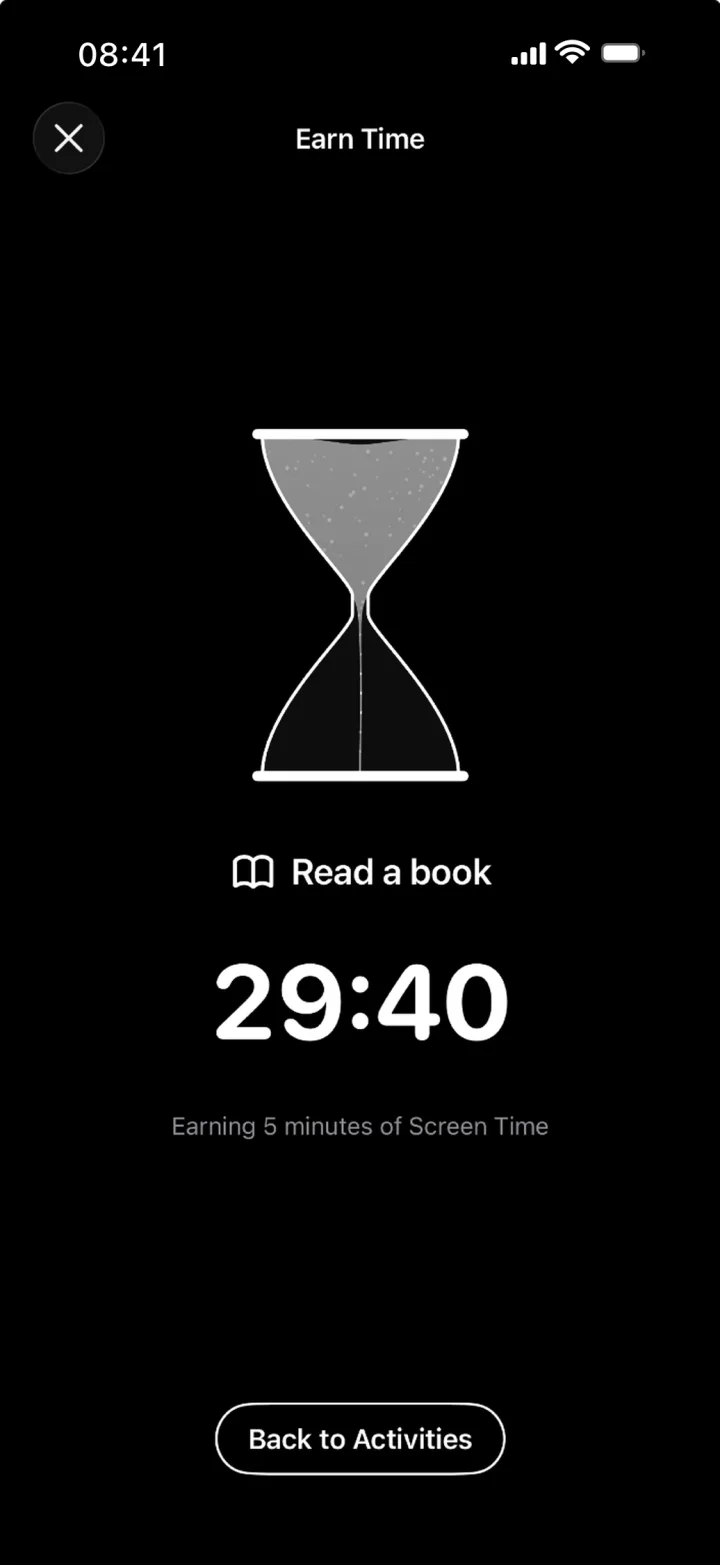
Wait out a countdown, tap dozens of times, finish an activity, or ask for the code.
Write down why you’re cutting back. You’ll read it each time you reach for a blocked app.
See how often you reach for blocked apps and how much time they still get, day by day.
Nothing scheduled right now? Block for a set time, from 15 minutes to 4 hours, with one tap.
For when a nudge isn’t enough. Turn on Locked mode and blocked apps stay shut until the block ends: the hours are over, you leave the place, or the session runs out.
Work, gym, sleep: each routine has its own apps, its own trigger and its own way back in. When two overlap, the stricter unlock method applies.
Choose Earn time as your way back in, and a blocked app opens only after you finish something real: a walk, a workout, a chapter of a book.
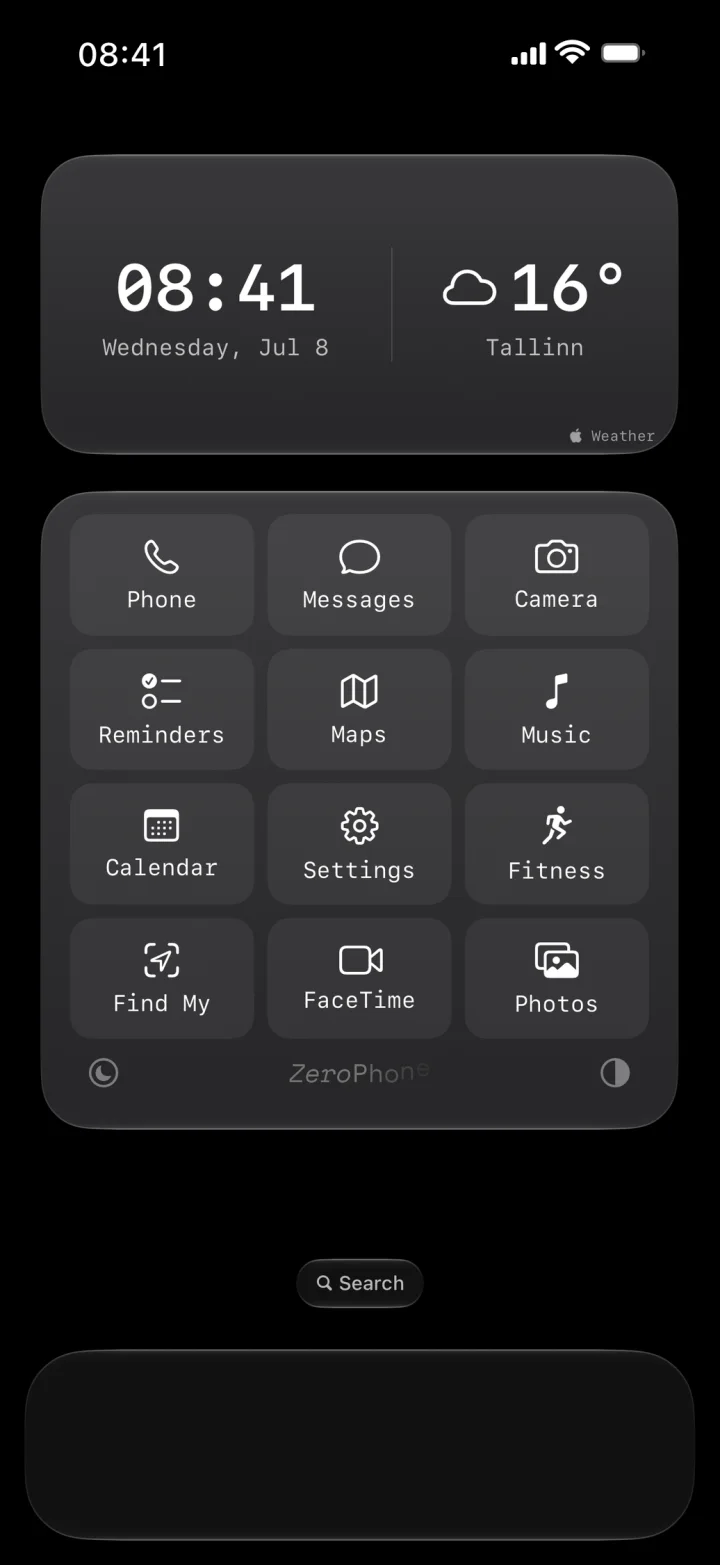
A short, quiet set of the apps you actually need, with the time and weather on top. Nothing colorful begging for a tap.
No account, no ads, no tracking. What you block, earn, and set up stays on your iPhone.
Read the privacy policy →In the gentler modes, yes, but it takes a deliberate choice. If you want no way out, give the passcode to someone else or turn on Locked mode. Then nothing switches blocking off until the block ends.
No. All processing happens locally on your iPhone. Your places are saved only on your phone, and your iPhone tells ZeroPhone when you arrive at or leave one of them. Your location is never sent to us or anyone else. Blocking places need location access set to Always, so blocking can switch on even while the app is closed.
Any writable NFC sticker works. Choose Tag as a routine’s trigger and hold your iPhone to the sticker to set it up. After that, tapping the tag with your iPhone unlocked starts the routine and tapping it again stops it, even in Locked mode, so put it somewhere that takes effort to reach. The tag holds only a link to ZeroPhone, nothing personal.
You get one emergency unlock every 7 days. It opens your blocked apps for 15 minutes, then the block continues.
Any iPhone running iOS 18 or later.